User Guide
MealFly User & Promotion Booklet
Everything about the Admin, POS, QR Menu (PWA), Kitchen (KDS) and Waiter apps in one booklet: features, usage steps and tips for each app.
5 apps
Turkish · English
Printable / PDF
NEW · PHONE & CALL MANAGEMENT
Turn every incoming call into an order
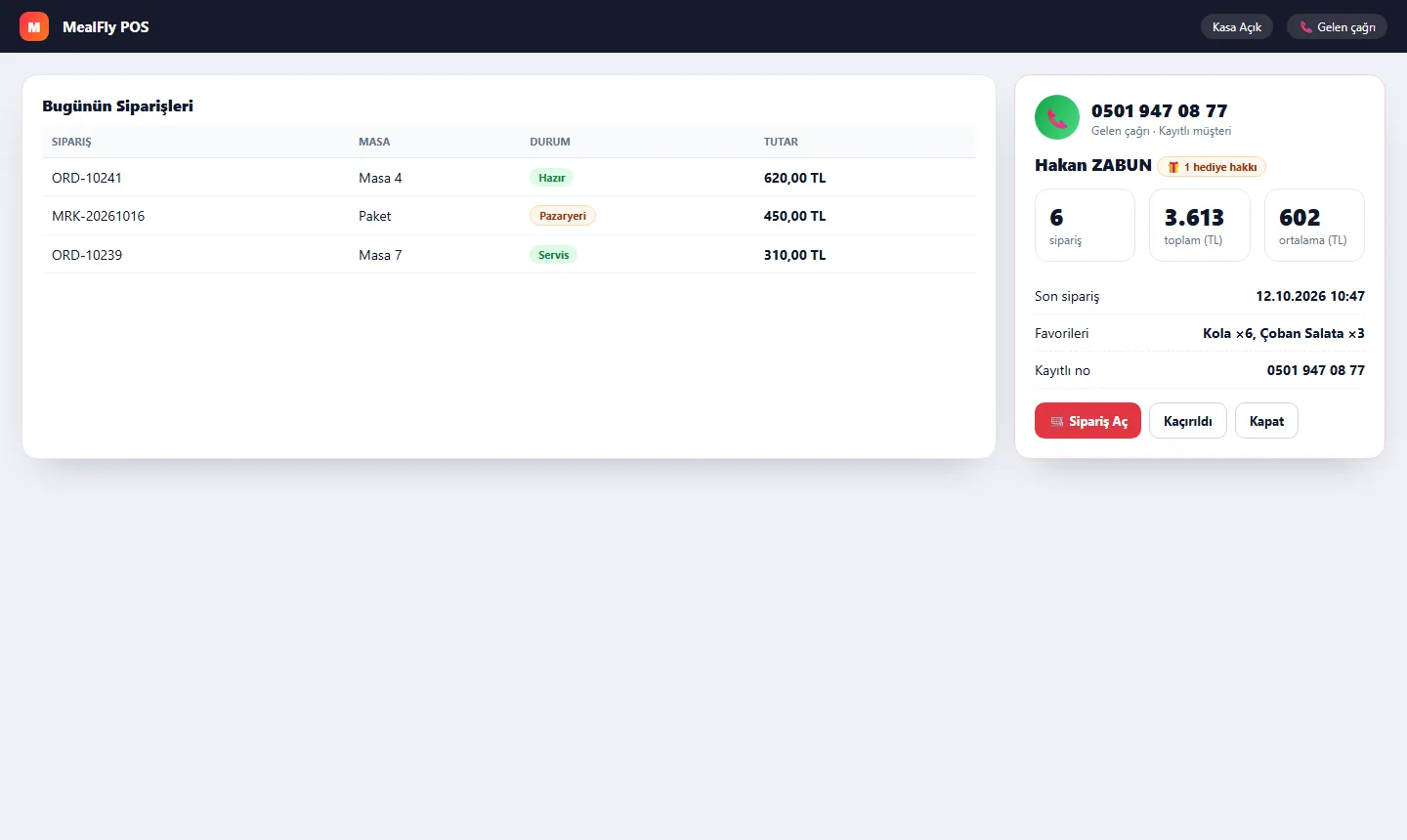
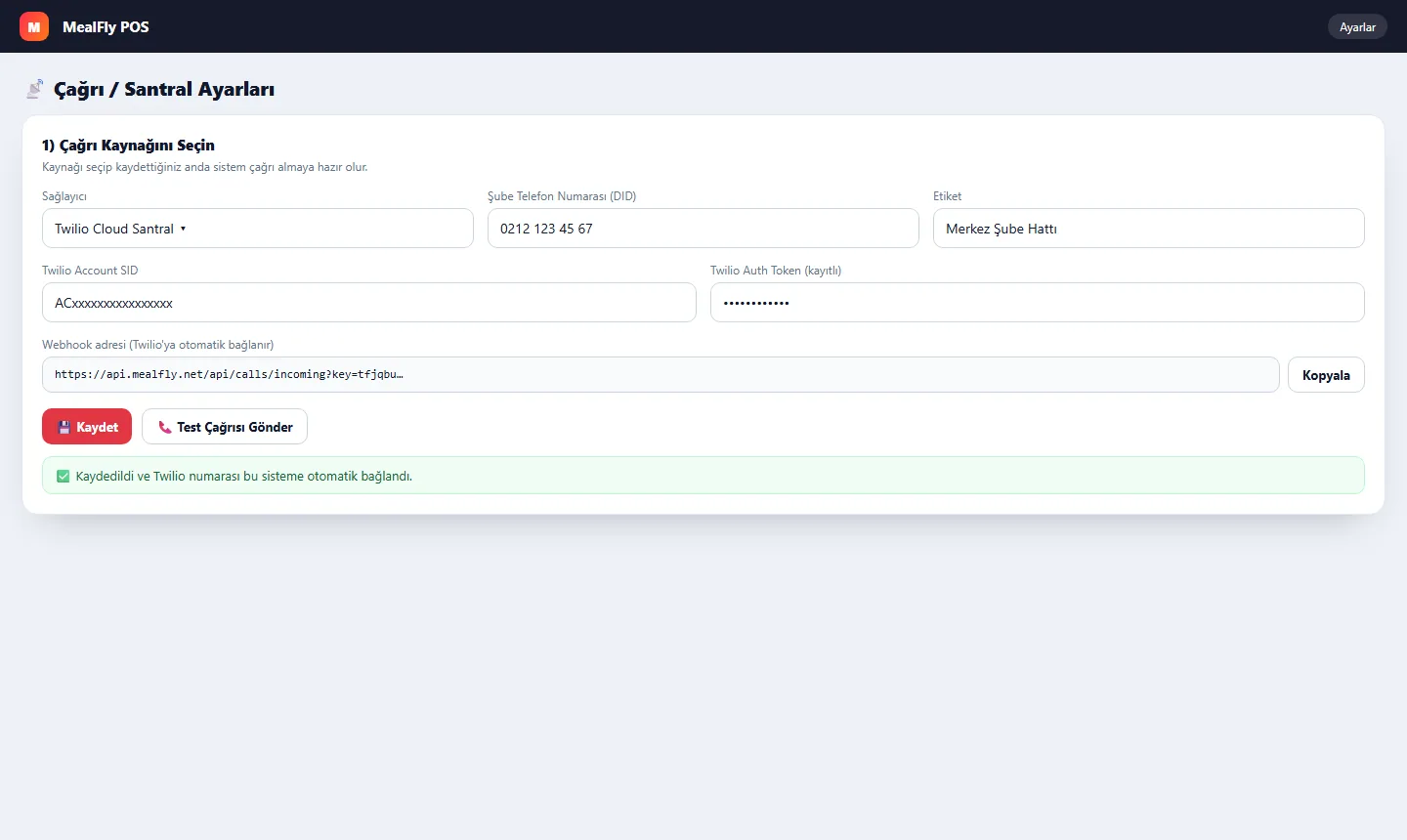
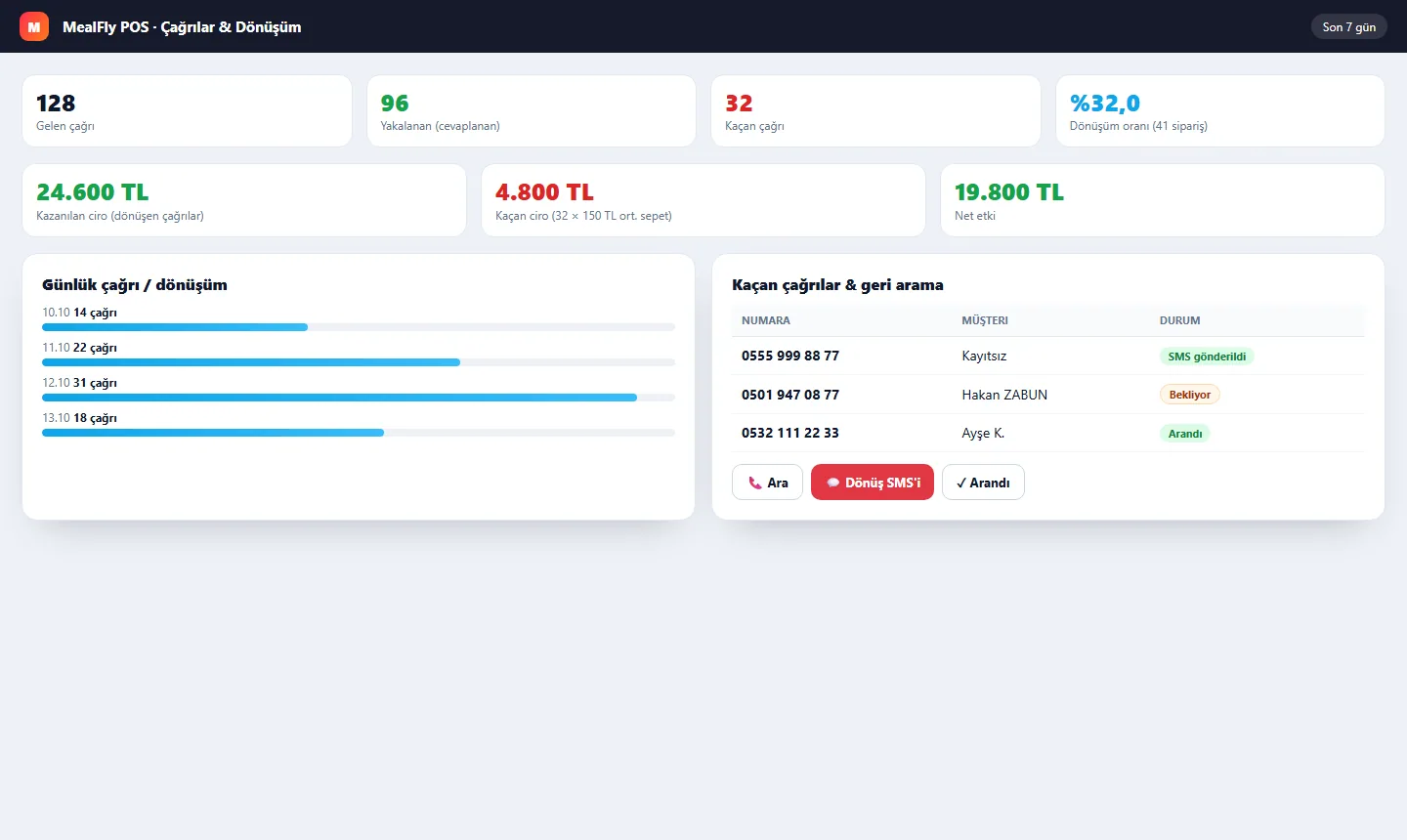
The customer card opens the moment they call (order history, spend, favourite items, gift rights). Calls are logged, missed ones go to the call-back list and your conversion rate is reported. Twilio, Netgsm, SIP trunk or a USB Caller ID device — all work in the same screen.
- Incoming call handling: match by number, one-click phone order, quick save for unknown numbers.
- Trunk settings: per-branch Twilio / Netgsm / SIP credentials, automatic webhook (Twilio), test call.
- Call reports: answered/missed calls, conversion rate, won and lost revenue, net impact, CSV/Excel.
This feature is included in all packages: Starter, Professional and Enterprise.
What's new
Two new highlights
Complimentary sides automation
Free sides with your main product (haydari, ezme, salad…); customers see them on the QR menu, stock deducts automatically and you set the quantities.
Discounted menu from products
Bundle products into % off campaign menus; shown on the QR menu, raising the average basket.
App Tour
Five apps, one flow
From customer to kitchen, from till to management — the whole process connected by QRMenu. Let's walk through every app with real screens.
The waiter sees table statuses, takes orders fast, closes the bill and handles service calls. They see only their own orders; works from a handheld or phone.
App Features
Table statuses (free/occupied/reserved)
Fast ordering & option picking
Billing & split payments
Respond to service calls
Break (shift) management
Only their own orders
Highlights
See the Tables
Take Orders Fast
Sync with Kitchen
Close the Bill
Pages & Sections
Home
Order
Taken
Bill
Profile
Orders appear the moment they land in the kitchen and flow as columns: New → Preparing → Ready → Served. The chef accepts orders and marks items one by one; late orders alert by color and sound.
App Features
New / Preparing / Ready / Served
Order accept & item-level status
Color & sound delay alerts
Daily prepared/served counter
Touchscreen friendly
Complimentary items shown separately
Highlights
See the Orders
Accept
Preparing
Ready to Serve
Pages & Sections
Panel
New
Cooking
Ready
Served
Take orders in seconds from the till. Bill, table merge/move, payment (cash/card/ticket), income-expense, receipt printer, day-end and a live order list on one screen. Courier assignment and multi-package routes are managed in POS too.
App Features
Bill & split payments
Move / merge / split tables
Courier assign & multi-package route
Income/expense & day-end (Z)
Thermal receipt printer (XPrinter)
Courier earnings & cash settlement
Highlights
Fast Ordering
Bill & Tables
Take Payment
Till & Day-End
Pages & Sections
Dashboard
Orders
New Order
Delivery & Courier
Reservations
Customers
Till / Income-Expense
Reports
05
Management
Admin (Management)
Manage your whole business from one panel: branches, products & categories, pricing, staff & permissions, stock & recipes, loyalty & campaigns, reports, subscription and Printers / courier settlement settings.
App Features
Branch, product & category management
Staff, role & permissions
Stock, recipes & cost (FIFO)
Loyalty, campaigns & promotions
Reports, income-expense & CSV
Printers & courier settlement
Highlights
Branch Management
Products & Pricing
Staff & Permissions
Reports
Pages & Sections
Panel
Branches
Products & Categories
Users & Permissions
Stock & Recipes
Printers
Reports & Cash Flow
Settings
The journey of an order
The customer scans the QR, the kitchen cooks, the till charges, management sees the report — all in real time.
1
The customer scans the QR code on the table
2
The menu opens in the browser, order is placed
3
The order drops onto the kitchen screen
4
Ready dishes are served, the till charges
5
Management sees the live report
Start today, get your first order in minutes
No setup · Lifetime free plan · No credit card required